The problem
I just got a new iPhone, I have had the old one for four years and I hope the new one will last even longer; moving all those 2FA apps and all the rest is a big hassle. Pro tip: Don’t reset or give away your old phone right after the new one seems to be working. You will need the old one for much longer than you think.
Especially the Oracle Mobile Authenticator was a big hassle. Not the app itself (it was copied automatically with the rest), but finding the page somewhere where I could add the new phone to my accounts wasn’t easy, so here it is until next time.
I have 4 different accounts at Oracle and each of them requires me to use 2FA. One is for regular login that I use when I download software, register for webinars, etc, three of them are cloud accounts at OCI.
Add a new phone to your Oracle profile account
For your regular Oracle SSO account go to this page and login, if you have 2FA enabled already you will need your old phone to approve the login from the app, or enter the passcode. From here you can add a new Mobile App:

You will be asked to scan a QR code as usual.
After you have done so, set the new one to default. Don’t delete the old one yet, you never know if you have to reset your new phone or something. Create a reminder for yourself somewhere to remove it later.
Add a new phone to your cloud account
Login to your cloud account as usual. Once connected got to User Settings in the Profile menu at top right corner:

On the next page click on the Security tab. From the Actions menu select Add mobile app:
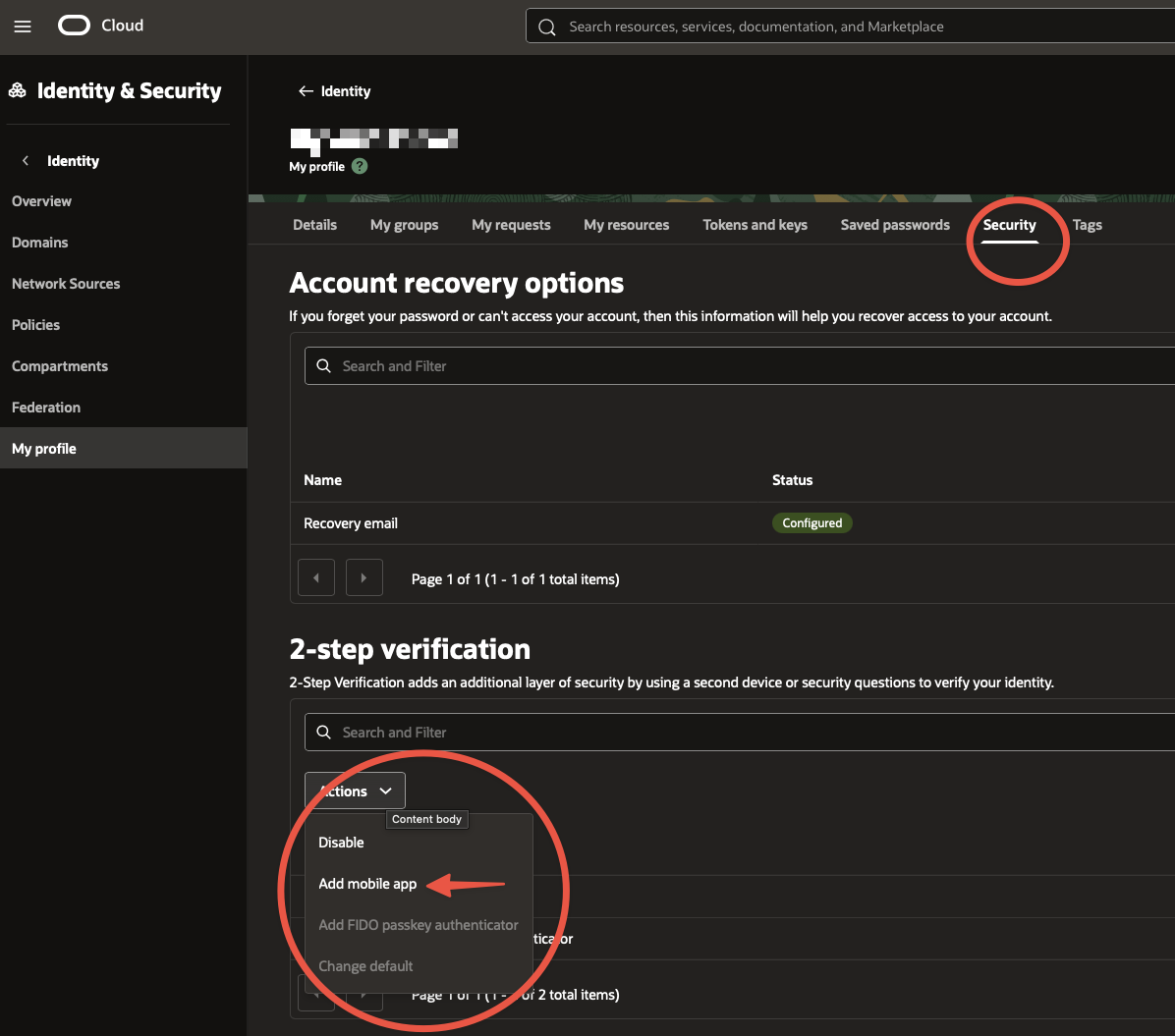
As usual you just scan the QR code and the rest is easy. Change the default in the menu after the new app is added.